
Last updated: June 23, 2026
Forgetting a Windows login password can make it feel as though every document, photograph and program on the computer has suddenly become inaccessible. Fortunately, Windows provides several legitimate recovery methods for computers that you own or are authorized to manage.
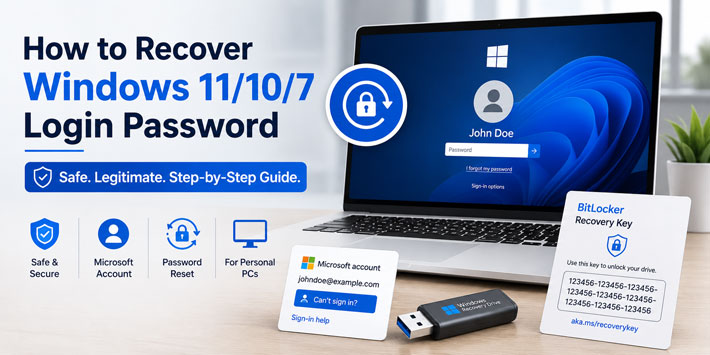
People sometimes search for instructions explaining how to “hack” a Windows administrator password when they are actually trying to recover their own PC. Password hacking, authentication bypasses and unknown bootable cracking utilities are not the right solution. The safest approach depends on whether you use a Microsoft account, local Windows account, Windows Hello PIN, work or school account, or an encrypted BitLocker drive.
This guide explains the supported recovery options for Windows 11 and Windows 10, along with the more limited choices still available on unsupported Windows 8, Windows 8.1 and Windows 7 computers.
Important authorization notice: Use these instructions only on a computer you own or have explicit permission to manage. Do not attempt to reset, remove or bypass another person’s password. A company, school or organization-owned computer should normally be handled by its IT administrator.
Data-protection warning: Do not format, reset or reinstall Windows until you understand what will happen to your files. An encrypted drive may require a BitLocker recovery key, and resetting one local account from another administrator can affect access to Encrypting File System certificates, stored credentials and other account-protected information.
Support status in 2026: Windows 7, Windows 8, Windows 8.1 and standard Windows 10 Home and Pro installations have reached the end of normal Microsoft support. Recover important data first, then upgrade to a supported Windows 11 device where possible.
Identify Your Windows Sign-In Method
The first step is determining what Windows is actually asking you to enter. A Microsoft account password, local account password, Windows Hello PIN and BitLocker recovery key are different credentials.
Microsoft Account Password
You probably use a Microsoft account if the Windows sign-in screen displays an email address ending in a domain such as Outlook.com, Hotmail.com or Live.com. It can also display an address from another email provider if that address was registered as a Microsoft account.
A Microsoft account password is managed online. Resetting it changes the password for the Microsoft account and may affect services such as Outlook, OneDrive, Microsoft Store, Xbox and Microsoft 365.
Local Windows Account Password
A local account exists only on that computer. Its sign-in name may appear without an email address. Local passwords cannot normally be reset through Microsoft’s website.
Windows 10 and Windows 11 local accounts may have security questions that can be answered from the sign-in screen. A previously created password reset disk may also work.
Windows Hello PIN
A Windows Hello PIN is usually a shorter numeric or alphanumeric code associated with one particular device. It is not necessarily the same as the Microsoft account password.
If the PIN stops working, you may still be able to select Sign-in options and enter the account password instead. Conversely, if you remember the PIN but not the Microsoft account password, you may still be able to enter Windows and recover the password from Settings.
Work, School or Domain Password
A business or school computer may use an organizational account controlled by Microsoft Entra ID, Active Directory or another management system. Its password-reset options are determined by the organization.
Do not use consumer recovery utilities on a managed device. Contact the company or school IT department.
BitLocker Recovery Key
If the screen requests a 48-digit recovery key, it is asking for a BitLocker key—not the Windows login password.
Changing the Microsoft account password or Windows PIN will not replace that key. You must locate the matching BitLocker recovery key or reset the device and lose the encrypted contents.
Quick Windows Password-Recovery Guide
| What you see | Recommended first method | Possible fallback |
|---|---|---|
| Email address on sign-in screen | Reset the Microsoft account password | Use another configured sign-in method |
| PIN entry box | Select “I forgot my PIN” | Choose Sign-in options and use the password |
| Local username on Windows 11 or 10 | Answer security questions | Password reset disk or another administrator |
| Local username on Windows 7 or 8 | Use a previously created reset disk | Another administrator or reinstall Windows |
| Company or school account | Use organizational self-service recovery | Contact the IT administrator |
| 48-digit key request | Find the BitLocker recovery key | Contact organizational IT or reset the device |
| No recovery option works | Reset This PC with Keep my files | Reinstall Windows using official media |
Checks to Make Before Resetting Anything
A sign-in failure does not always mean the password has been forgotten. Check the following simple possibilities first.
Check Caps Lock and Num Lock
Windows passwords are case-sensitive. Confirm that Caps Lock has not been enabled accidentally. If the password contains numbers entered from a numeric keypad, also check Num Lock.
Check the Keyboard Layout
The sign-in screen can use a different keyboard language or layout from the one you expect. Look for the language indicator near the bottom-right corner.
Characters such as @, ", :, ;, Y and Z can move between different keyboard layouts.
Use the On-Screen Keyboard
Select the Accessibility icon on the sign-in screen and open the on-screen keyboard. This can help identify a faulty keyboard, stuck key or unexpected layout.
Select Sign-In Options
Look for Sign-in options below the credential field. Windows may currently be requesting a PIN when you are entering a password, or requesting a password when you are entering the PIN.
The key-shaped icon normally represents a password. The keypad-style icon represents a PIN. Fingerprint and face icons represent Windows Hello biometric methods.
Connect the PC to the Internet
A Microsoft account password reset may require the computer to be online before Windows recognizes the new password. Use the network icon on the sign-in screen to connect to Wi-Fi or Ethernet.
Restart the Computer
Use Power > Restart rather than shutting the lid or putting the computer to sleep. A restart can clear temporary sign-in or update problems.
If the password is definitely forgotten, continue with the method matching the account type.
You might find interesting to learn:
> How Instagram Accounts Get Hacked and How to Protect Yours
1. Reset a Microsoft Account Password
Best for: Windows 11, Windows 10 and Windows 8 or 8.1 accounts that display a Microsoft account email address.
This is usually the easiest and safest recovery method because the password is managed through Microsoft’s online account system.
Option A: Reset It From the Windows Sign-In Screen
- Start the computer and reach the Windows sign-in screen.
- Make sure the computer is connected to the internet.
- Select the password sign-in option if Windows currently displays a PIN box.
- Select I forgot my password or the available password-recovery link.
- Confirm the Microsoft account email address.
- Choose an available identity-verification method.
- Enter the verification code sent to the approved email address, phone number or authentication method.
- Create a new Microsoft account password.
- Return to the Windows sign-in screen and enter the new password.
Option B: Reset It From Another Device
If the locked computer cannot connect to the internet or the sign-in recovery interface does not work, use another trusted phone, tablet or computer.
Open Microsoft’s official forgotten-password page
- Enter the Microsoft account email address, telephone number or Skype name.
- Complete Microsoft’s identity-verification process.
- Create a new password.
- Connect the locked PC to the internet.
- Choose the password sign-in option and enter the new password.
If You Cannot Receive a Verification Code
Use Microsoft’s account recovery or sign-in helper process. You may be asked for information previously associated with the account.
Microsoft support cannot simply disclose the password, manually bypass identity verification or send access to someone who cannot prove ownership.
Common Microsoft Account Problems
- The PC is offline: Connect it to the internet before trying the newly reset password.
- You are entering the PIN: Select the password sign-in option.
- The email address is unfamiliar: Check whether the computer was originally configured by a family member, employer or previous owner.
- You no longer have the recovery phone: Use the alternative recovery choices provided by Microsoft.
- The account is passwordless: Follow the available Authenticator, security-key, Windows Hello or verification-code prompt.
2. Reset a Windows Hello PIN
Best for: Windows 11 and Windows 10 when the password is known or the Microsoft account can be verified, but the device PIN has been forgotten.
A Windows Hello PIN is tied to the device. Resetting it does not necessarily change the Microsoft account password.
Reset the PIN From the Sign-In Screen
- At the Windows sign-in screen, select I forgot my PIN.
- Confirm the Microsoft account or other requested identity information.
- Complete the verification prompt.
- Create a new PIN.
- Use the new PIN to sign in.
The computer normally needs internet access to verify a Microsoft account during this process.
Sign In With the Password Instead
If the PIN reset option does not appear:
- Select Sign-in options.
- Select the key-shaped password icon.
- Enter the Microsoft account or local account password.
- After signing in, open Settings > Accounts > Sign-in options.
- Select PIN (Windows Hello).
- Choose the option to change or reset the PIN.
PIN Unavailable After a Hardware or Security Change
Windows may ask you to configure the PIN again after a TPM reset, security update, motherboard change or other security-related event. Follow the account-verification prompt rather than downloading a PIN-removal utility.
3. Reset a Local Account Using Security Questions
Best for: A Windows 11 or Windows 10 local account for which security questions were configured.
- At the sign-in screen, select the password sign-in option.
- Enter an incorrect password once if necessary to display recovery choices.
- Select Reset password.
- Answer the security questions configured when the account was created.
- Enter and confirm a new password.
- Sign in using the new local password.
The answers must match the answers originally saved for that account. Capitalization may not always matter, but spelling and wording do.
What If “Reset Password” Does Not Appear?
Possible explanations include:
- The account is a Microsoft account rather than a local account.
- The local account was created without security questions.
- The computer runs an older Windows version.
- The device is managed by an organization.
- Windows is displaying the PIN field instead of the password field.
Try the password reset disk, another authorized administrator account or the appropriate Windows recovery option.
4. Use a Previously Created Password Reset Disk
Best for: A local Windows account when a password reset USB was created before the password was forgotten.
A password reset disk cannot normally be created after you become locked out. It must already exist.
How to Use the Reset Disk
- Insert the password reset USB drive into the locked computer.
- Reach the Windows sign-in screen.
- Select the local account.
- Enter an incorrect password if needed to reveal recovery choices.
- Select Reset password or Use a password reset disk.
- Follow the Password Reset Wizard.
- Select the correct USB drive.
- Create a new password and optional password hint.
- Finish the wizard and sign in.
The reset disk applies to the local account for which it was created. It does not reset a Microsoft account password, domain account or BitLocker key.
Create One After You Recover Access
Windows 11 and Windows 10 local-account users can create a reset disk from Control Panel:
- Insert a USB flash drive.
- Open Control Panel.
- Search for create password reset.
- Select Create a password reset disk.
- Follow the Forgotten Password Wizard.
- Store the USB securely.
Anyone holding that reset disk may be able to reset the associated local password, so do not leave it attached to the computer.
5. Reset a Local Account From Another Administrator
Best for: A personally owned computer with another administrator account that you can already access.
This method applies to local accounts. It does not replace the online password of a Microsoft account.
Before Using This Method
Use the account’s own security questions or reset disk first where possible. An administrative reset can affect access to information protected by the original account credentials, including EFS-encrypted files, personal certificates and stored passwords.
Do not use this method casually on a business workstation or an account containing encrypted files.
Reset the Local Account
- Sign in to the computer using the other authorized administrator account.
- Right-click the Start button and open Computer Management.
- Expand Local Users and Groups.
- Select Users.
- Right-click the local user whose password needs to be reset.
- Select Set Password.
- Read the Windows warning carefully.
- Enter and confirm the new password.
- Sign out and test the affected account.
The Local Users and Groups interface may not be included in every Windows Home edition. In that case, use Windows account-management settings or another supported recovery route rather than downloading a password-removal utility.
Why a Guest Account Does Not Work
A standard or Guest account does not receive administrator authority merely because it can sign in. It cannot normally change another administrator’s password, manage protected accounts or create administrative access.
The old claim that any Guest profile provides a password-reset “backdoor” is incorrect.
6. Recover a Work, School or Domain Account
Best for: Organization-managed computers and accounts.
A work or school password may be controlled through Microsoft Entra ID, Active Directory, Microsoft 365 or another identity-management platform.
Use Organizational Self-Service Password Reset
If the organization enabled self-service recovery, use its official password-reset page and the verification methods previously registered with the account.
Open Microsoft’s work or school password-reset page
Contact the IT Department
Contact the organization’s help desk when:
- Self-service recovery is unavailable.
- The account is disabled or locked.
- The computer cannot contact the organization’s network.
- The device requests an organizational BitLocker key.
- The user has left the company or changed roles.
- The PC is joined to a traditional Windows domain.
An IT administrator can verify ownership and follow the organization’s policies. Avoid taking a managed laptop to an unrelated repair shop without company approval.
7. Recover a BitLocker-Protected Drive
Best for: A computer displaying a BitLocker recovery screen with a key ID and request for a 48-digit number.
BitLocker protects the drive itself. It may request a recovery key after hardware, firmware, TPM, boot or security changes that Windows cannot confidently distinguish from an unauthorized access attempt.
Find the Key in a Microsoft Account
From another trusted device, open:
View BitLocker recovery keys stored in a Microsoft account
- Sign in with the Microsoft account associated with the PC.
- Compare the key ID shown online with the ID on the locked computer.
- Enter the matching 48-digit recovery key.
Check Other Possible Locations
The key may also be:
- Saved to a USB flash drive.
- Printed on paper.
- Stored in a text file or password manager.
- Saved in a work or school account.
- Held by the organization’s IT department.
- Stored by the person who originally configured the computer.
If the BitLocker Key Cannot Be Found
Microsoft cannot reconstruct or bypass a missing BitLocker recovery key. That limitation is the purpose of strong drive encryption.
You may still be able to erase the drive and reinstall Windows, but the encrypted files will be lost. Do not pay a website claiming that it can calculate or generate the missing BitLocker key.
8. Use Reset This PC
Best for: Windows 11 or Windows 10 when no account-recovery method works and you accept that installed applications and settings will be removed.
Keep my files reinstalls Windows while preserving many personal files in the user folders. It removes installed applications and resets Windows settings.
Remove everything removes personal files, applications and settings. Use it only when you have a backup or no longer need the contents.
Open Reset This PC From the Sign-In Screen
- At the sign-in screen, select the Power icon.
- Hold down the Shift key.
- While holding Shift, select Restart.
- Release Shift when the recovery screen appears.
- Select Troubleshoot.
- Select Reset this PC.
- Choose Keep my files or Remove everything.
- Select Cloud download or Local reinstall if offered.
- Review the summary carefully.
- Follow the prompts to reinstall Windows.
Cloud Download or Local Reinstall?
Cloud download retrieves fresh Windows installation files from Microsoft. It requires a reliable internet connection and sufficient data allowance.
Local reinstall uses files already stored on the computer. It can be faster but may fail if local recovery files are damaged.
Important Reset Limitations
- Installed desktop applications normally need to be reinstalled.
- Application settings and some Windows settings are reset.
- Files outside standard personal folders may not be preserved as expected.
- A BitLocker recovery key may be required.
- “Keep my files” is not a replacement for a verified backup.
- Organization-managed devices may use different recovery policies.
If the files are irreplaceable, consider consulting an authorized data-recovery or computer-repair professional before starting a reset. The professional should not promise to bypass BitLocker or other strong encryption.
9. Reinstall Windows With Official Installation Media
Best for: A PC that cannot use Reset This PC, has damaged recovery files or requires a completely clean installation.
Use only installation media obtained from Microsoft or the computer manufacturer. Avoid unofficial modified Windows images.
Create Windows Installation Media
On another working computer:
- Open Microsoft’s official Windows software download page.
- Choose Windows 11 or Windows 10 installation media.
- Download the official media-creation utility or ISO.
- Insert an empty USB flash drive of the required capacity.
- Follow Microsoft’s instructions to create bootable media.
Download official Windows 11 installation media
Download official Windows 10 installation media
Boot From the USB Drive
The boot-menu key varies by manufacturer. Common keys include Esc, F9, F10, F11, F12 or another key displayed during startup. F2 is often used for firmware settings, but it is not universal.
Check the computer manufacturer’s official documentation for the correct key and Secure Boot requirements.
Choose the Reinstallation Type Carefully
Depending on the installation path, Windows may offer options that preserve some personal files or perform a clean installation. Read every summary before continuing.
A clean installation can delete all partitions, applications, settings and personal information. Ensure that backups and BitLocker recovery keys are available first.
You might find it needed:
> How to Hack a TikTok Account
Windows 8 and Windows 8.1 Password Recovery
Windows 8 introduced Microsoft account sign-in, while also supporting local accounts. Windows 8 and Windows 8.1 are no longer supported, so some online documentation and interface details are now limited.
If You Use a Microsoft Account
Reset the password through Microsoft’s online password-reset page. Connect the Windows 8 computer to the internet and enter the new Microsoft account password.
If You Use a Local Account
Your supported options are generally:
- Use a password reset disk created for that local account.
- Sign in with another authorized administrator account and reset the local user.
- Use the computer manufacturer’s official recovery environment.
- Refresh, reset or reinstall Windows using legitimate recovery media.
Security-question recovery available on current Windows 10 and Windows 11 installations may not be present on an older Windows 8 local account.
Windows 8 Recovery Environment
On many Windows 8 or 8.1 systems, you can hold Shift while selecting Restart from the sign-in screen, then open Troubleshoot and the available recovery options. Exact names vary according to the version and manufacturer.
Because the operating system is unsupported, recover your files and move to a supported Windows 11 PC rather than returning the old computer to everyday internet use.
You may decide to learn:
> How to Hack WiFi password
Windows 7 Password Recovery
Windows 7 does not provide the same online and security-question recovery experience as Windows 11 and Windows 10.
Supported Windows 7 Options
- Use a password reset disk created before the password was forgotten.
- Sign in with another authorized administrator account and reset the local account.
- Use official computer-manufacturer recovery media.
- Restore the machine from a backup image you created earlier.
- Reinstall Windows and restore personal files from a backup.
Pressing Shift Five Times Does Not Open a Super Administrator
On a normal Windows installation, pressing Shift five times invokes the Sticky Keys accessibility feature. It does not reveal a hidden “Super Administrator Account” and does not grant administrative access.
Instructions that replace accessibility files with Command Prompt are authentication-bypass techniques, not legitimate password recovery. They can damage system files, create security vulnerabilities and interfere with later repairs.
Windows 7 Is No Longer Safe for Regular Internet Use
Windows 7 support ended years ago. Even after recovering access, the system should not be treated as a secure everyday internet computer. Back up the needed files and migrate to supported hardware and software.
Password Bypass Methods and Tools to Avoid
Unknown Bootable Password-Cracking Utilities
Do not download a password-reset ISO or executable from an unknown website simply because it promises to remove the password in minutes.
Possible risks include:
- Malware or remote-access software.
- Corruption of the Windows account database.
- Loss of EFS encryption keys.
- Loss of stored browser, network and application credentials.
- BitLocker lockout.
- Modified boot files and persistent security vulnerabilities.
- No support if the tool damages the installation.
Sticky Keys or Accessibility-File Replacement
Replacing sethc.exe, utilman.exe or another accessibility component with Command Prompt is an authentication bypass. It is not a supported recovery procedure and should not be included in a legitimate tutorial.
Deleting or Editing the SAM Database
The Security Accounts Manager database contains information used for local account authentication. Offline tools that modify it can damage user profiles or create inconsistencies with encryption and stored credentials.
Guest Account “Backdoors”
A Guest or standard account cannot legitimately promote itself to administrator or reset an administrator password. Instructions claiming otherwise generally depend on a vulnerability, misconfiguration or unsupported bypass.
Guaranteed BitLocker Cracking Services
A service claiming to derive any 48-digit BitLocker recovery key is not credible. BitLocker is specifically designed to prevent access when neither an authorized unlock method nor recovery key is available.
What to Do After Recovering Access
Back Up Important Files Immediately
Copy irreplaceable files to a separate drive and a reputable cloud-backup location. A synchronized folder is useful, but synchronization alone is not always a complete backup.
Verify the Account Type
Open Settings > Accounts > Your info and determine whether the computer uses a Microsoft account or local account.
Configure Multiple Sign-In Options
On supported hardware, configure Windows Hello PIN, fingerprint or facial recognition. Keep the underlying Microsoft or local account password secure because Windows may still request it after certain updates or security changes.
Update Microsoft Account Recovery Information
Confirm that the Microsoft account has a current email address, telephone number and authentication method. Remove recovery methods you no longer control.
Create a Password Reset Disk for a Local Account
Local-account users should create a reset USB and store it securely away from the computer.
Save the BitLocker Recovery Key
Confirm that the recovery key is backed up to the correct Microsoft account, work or school account, secure USB, printed copy or protected password manager.
Use a Password Manager
A password manager can generate and store a long, unique Microsoft account password. Do not reuse that password for unrelated websites.
Upgrade Unsupported Windows Versions
Windows 7, Windows 8 and Windows 8.1 should be replaced. Standard Windows 10 Home and Pro support also ended on October 14, 2025. Move to a supported edition of Windows 11 wherever the hardware permits.
It may come handful to know:
> How Facebook Accounts Get Hacked
Frequently Asked Questions
Can I hack my own Windows administrator password?
The legitimate solution is to reset or recover the account through Microsoft, security questions, a reset disk, another authorized administrator, organizational IT or Windows recovery. Authentication-bypass methods are unnecessary and can damage the system or encrypted data.
Can a Guest account reset the Windows administrator password?
No. A normal Guest or standard account does not have permission to reset an administrator account. It must be elevated by an existing administrator, which requires authorized administrator credentials.
Does pressing Shift five times unlock Windows?
No. Pressing Shift five times normally opens Sticky Keys. It does not activate a hidden administrator account.
Can Safe Mode remove a Windows password?
No. Safe Mode is a troubleshooting environment and still requires a valid account password. PIN and biometric methods may be unavailable there, so Windows may request the actual Microsoft or local account password.
What is the difference between a Windows password and PIN?
The password belongs to the Microsoft or local Windows account. A Windows Hello PIN is generally tied to a particular device and protected by that device’s security hardware. Resetting one does not automatically reset the other.
Why does my Microsoft account password work online but not on the PC?
The PC may be offline, Windows may be requesting a PIN, the keyboard layout may be wrong, or the machine may still be using cached credentials. Connect it to the internet, choose the password sign-in option and verify the keyboard layout.
Will Reset This PC delete my files?
The Keep my files choice is designed to preserve personal files while removing applications and resetting settings. Nevertheless, no reset process should be treated as a guaranteed backup. Files may also remain inaccessible if they are separately encrypted and the required key is unavailable.
Can Microsoft recover my forgotten local Windows password?
No. Microsoft cannot retrieve or bypass a forgotten local password. Recovery depends on security questions, a reset disk, another administrator or resetting the Windows installation.
Can Microsoft retrieve a missing BitLocker key?
Microsoft can show a key previously backed up to the correct Microsoft account, but it cannot calculate a missing key. Check personal, organizational, USB and printed backup locations.
Can a repair shop reset the password without losing data?
A reputable technician can use the same authorized recovery options available to the owner and diagnose sign-in problems. They cannot guarantee access to BitLocker-encrypted or EFS-encrypted data without the required key or certificate.
Should I use third-party Windows password recovery software?
Official recovery methods should be used first. Unknown password-removal utilities can contain malware, modify protected system files or cause loss of encrypted information. Do not download such tools from advertisements, file-sharing websites or unverified software directories.
How do I recover a Windows 7 or Windows 8 local password without a reset disk?
If no authorized administrator account is available, the dependable remaining option is generally to use the computer manufacturer’s recovery environment or reinstall Windows. Recover any accessible backed-up data first and migrate away from the unsupported operating system.
Final Thoughts
Recovering access to your own Windows computer should begin by identifying whether Windows is requesting a Microsoft password, local password, PIN, organizational account or BitLocker key.
Microsoft account passwords can usually be reset online. Windows Hello PINs can be recreated after identity verification. Windows 11 and Windows 10 local accounts may support security questions, while a password reset USB or another authorized administrator can assist with some local accounts.
When none of those methods is available, Reset This PC or an official Windows reinstallation may be necessary. Those options can remove applications, settings and potentially personal data, so they should be treated as final recovery measures.
Avoid Sticky Keys replacements, Guest-account tricks, unknown password crackers and websites promising instant BitLocker recovery. These are not legitimate substitutes for account ownership verification and may leave the computer less secure than it was before.
Related Posts:
>> How to Speed Up Windows PC & Improve Performance
>> How to Secure Windows OS From Hackers
Stay tuned!